



The PS Portal is a dedicated handheld gaming device that allows you to stream your PS5 games to it, when you’re unable to use your TV. It works well and serves its purpose, but it’s also expensive and not something every PS5 owner needs for those occasional moments. This is where Sony’s PS Remote Play app comes in, basically providing the same functionality but for your existing devices. The app is available for all devices like an Android TV, mobile devices, Mac, and Windows PCs. Today, we’ll walk you through how to set up PS Remote Play on your Windows PC.
What do you need to run PS Remote Play?
Some of the minimum requirements to run PS Remote Play on Windows is a Windows 10 or 11 PC and about 100MB or more storage. The RAM and CPU requirements are very basic too, which means you should be able to do this even on a five-year old laptop with ease. The most important component here is a stable internet connection. Sony recommends a minimum of a 15Mbps up and down speeds for optimal performance, although the bare minimum is set at 5Mbps.
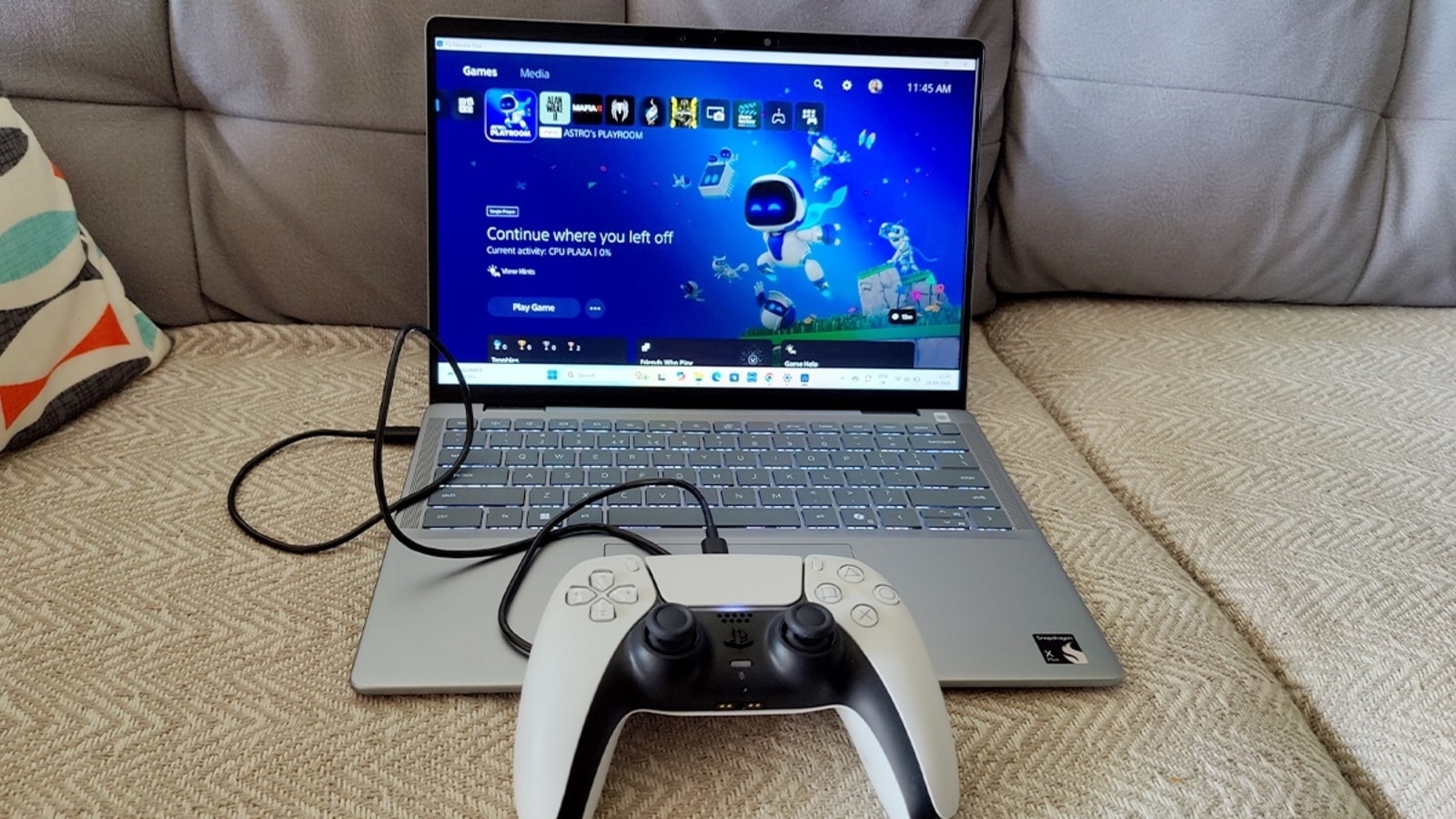
For this guide, we’re using a Dell Inspiron 14 Plus 7441 Snapdragon-powered laptop, which runs Windows on Arm.
• Download the PS Remote Play app from here. Follow the on-screen instructions to install the application.
• Next, enable Remote Play on your PS5 by going to Settings >> System >> Remote Play, and enable the toggle switch.
• Make sure you enable internet connection of your console when in rest mode. Head to Settings >> System >> Power Saving >> Features available in Rest Mode. Enable the toggles for ‘Stay Connected to the Internet’ and ‘Enable Turning on PS5 from Network.’
• Launch the PS Remote Play app on your WIndows PC and sign into PSN. Make sure to use your same login details that you’ve used on your PS5.
• Give it a few moments for the app to sign in and detect your console. The sign-in process only needs to be done once. The next time, you simply select your console and connect.
• To use the DualSense controller with your PC, it needs to be plugged into your laptop. You may use any USB-C to C cable for this. The PS Remote app will automatically detect the controller and let you control the interface, just as you would if it was connected wirelessly to the console itself.
• In case you’re not getting the PS5’s audio from your laptop, check the control center panel in Windows 11 and make sure the sound output is set to your laptop’s speakers and not the DualSense controller.
That’s pretty much it. You can now control your PS5 and play all your games on your PC in the same way you would your console. Sony does not officially support using the controller wirelessly with your laptop for some reason, so you’ll have to make do with a wired connection only. I don’t think this should be a major issue since you won’t be sitting too far from your laptop anyway. Plus, there’s no worry about the controller running out of charge.
The PS Remote Play app has overlay controls for the Share, Options, and PS buttons on the controller that can be controlled via your laptop’s mouse buttons. If your laptop’s display supports HDR, you can enable HDR streaming from the PS Remote Play app. When you launch the app and before signing into your console, you’ll see a settings logo (cog wheel) on the left side of the app. Click that and go to the second tab which says ‘Video Quality for Remote Play.’ The first option should be HDR, which you’ll be able to enable if your PC’s display supports it and you have the other prerequisites (HEVC Video Extension is installed and ‘Play HDR games and app’ setting is enabled in Windows).
One important thing to keep in mind when PS Remote Play can only connect to your console if it’s already on or in rest mode. The connection will fail if the console is switched off. You need to remember to always put the PS5 in rest mode if you want to be able to access it remotely in the future.

The PS Portal is a dedicated handheld gaming device that allows you to stream your PS5 games to it, when you’re unable to use your TV. It works well and serves its purpose, but it’s also expensive and not something every PS5 owner needs for those occasional moments. This is where Sony’s PS Remote Play app comes in, basically providing the same functionality but for your existing devices. The app is available for all devices like an Android TV, mobile devices, Mac, and Windows PCs. Today, we’ll walk you through how to set up PS Remote Play on your Windows PC.
What do you need to run PS Remote Play?
Some of the minimum requirements to run PS Remote Play on Windows is a Windows 10 or 11 PC and about 100MB or more storage. The RAM and CPU requirements are very basic too, which means you should be able to do this even on a five-year old laptop with ease. The most important component here is a stable internet connection. Sony recommends a minimum of a 15Mbps up and down speeds for optimal performance, although the bare minimum is set at 5Mbps.
For this guide, we’re using a Dell Inspiron 14 Plus 7441 Snapdragon-powered laptop, which runs Windows on Arm.
• Download the PS Remote Play app from here. Follow the on-screen instructions to install the application.
• Next, enable Remote Play on your PS5 by going to Settings >> System >> Remote Play, and enable the toggle switch.
• Make sure you enable internet connection of your console when in rest mode. Head to Settings >> System >> Power Saving >> Features available in Rest Mode. Enable the toggles for ‘Stay Connected to the Internet’ and ‘Enable Turning on PS5 from Network.’
• Launch the PS Remote Play app on your WIndows PC and sign into PSN. Make sure to use your same login details that you’ve used on your PS5.
• Give it a few moments for the app to sign in and detect your console. The sign-in process only needs to be done once. The next time, you simply select your console and connect.
• To use the DualSense controller with your PC, it needs to be plugged into your laptop. You may use any USB-C to C cable for this. The PS Remote app will automatically detect the controller and let you control the interface, just as you would if it was connected wirelessly to the console itself.
• In case you’re not getting the PS5’s audio from your laptop, check the control center panel in Windows 11 and make sure the sound output is set to your laptop’s speakers and not the DualSense controller.
That’s pretty much it. You can now control your PS5 and play all your games on your PC in the same way you would your console. Sony does not officially support using the controller wirelessly with your laptop for some reason, so you’ll have to make do with a wired connection only. I don’t think this should be a major issue since you won’t be sitting too far from your laptop anyway. Plus, there’s no worry about the controller running out of charge.
The PS Remote Play app has overlay controls for the Share, Options, and PS buttons on the controller that can be controlled via your laptop’s mouse buttons. If your laptop’s display supports HDR, you can enable HDR streaming from the PS Remote Play app. When you launch the app and before signing into your console, you’ll see a settings logo (cog wheel) on the left side of the app. Click that and go to the second tab which says ‘Video Quality for Remote Play.’ The first option should be HDR, which you’ll be able to enable if your PC’s display supports it and you have the other prerequisites (HEVC Video Extension is installed and ‘Play HDR games and app’ setting is enabled in Windows).
One important thing to keep in mind when PS Remote Play can only connect to your console if it’s already on or in rest mode. The connection will fail if the console is switched off. You need to remember to always put the PS5 in rest mode if you want to be able to access it remotely in the future.